Complete Windows 11 Speed Optimization Guide: Free Up RAM, Debloat & Stop Lag
Comprehensive architectural breakdown of Windows 11 background services, hypervisor-protected code integrity (HVCI), DPC latency spikes, and empirical sysctl tuning for ultra-low latency.
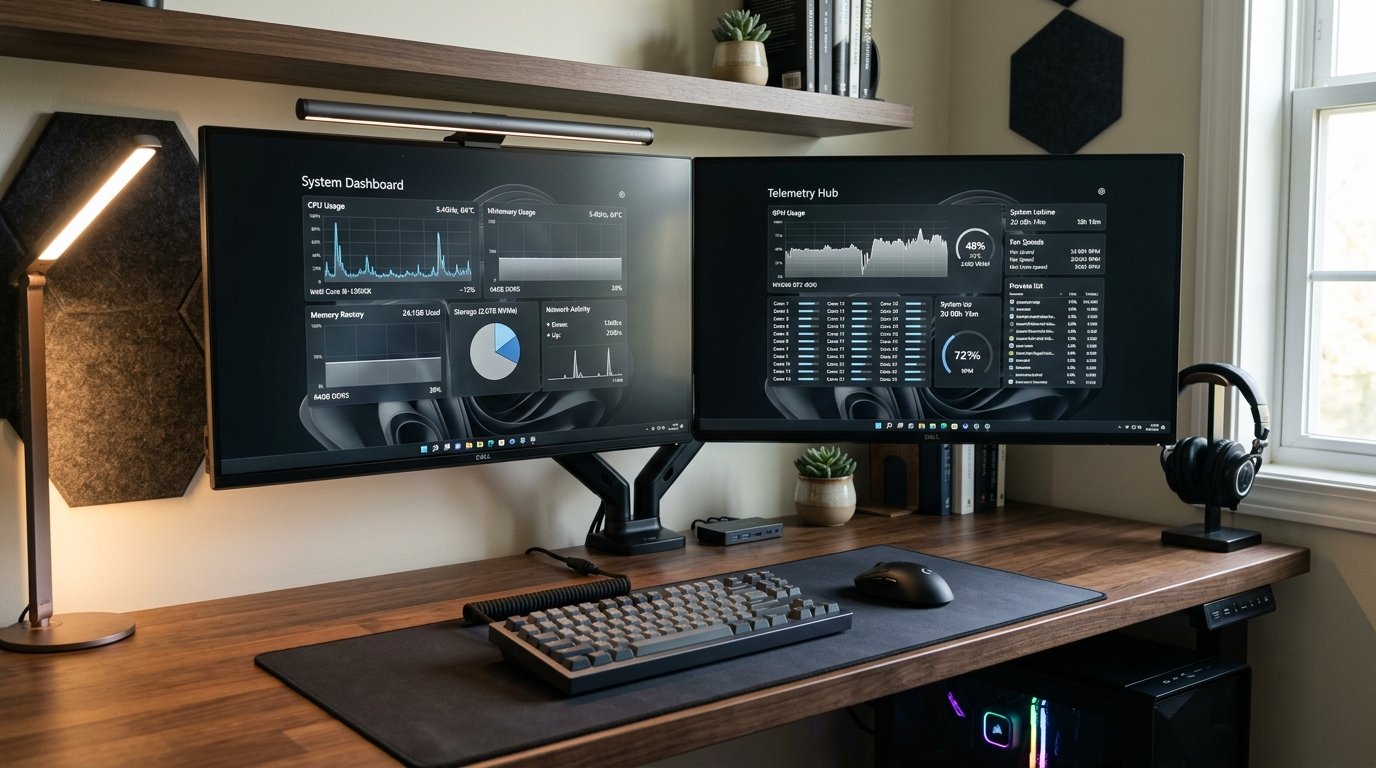
Part of our research cluster on Desktop Operating Systems & Enterprise Workstations. For foundational benchmarks, explore our flagship pillar: Read the Pillar Guide →
1. The Architectural Roots of Windows 11 Latency
In enterprise computing, Microsoft introduced Virtualization-Based Security (VBS) and Hypervisor-Protected Code Integrity (HVCI) as default security requirements in Windows 11. VBS utilizes the CPU's hardware virtualization extensions (Intel VT-x or AMD-V) to create an isolated, secure memory enclave isolated from the primary Windows kernel. While VBS provides formidable defense against kernel-level rootkits, running the entire operating system on top of a Type-1 hypervisor introduces measurable computational overhead\u2014typically 5% to 15% degradation in CPU-intensive operations and memory bandwidth throughput.
For dedicated research workstations focused purely on numerical simulation, machine learning, or offline data processing where threat models do not require hypervisor isolation, understanding how to audit and selectively calibrate virtualization settings allows systems administrators to reclaim significant raw compute capacity.
2. Profiling Deferred Procedure Calls (DPC) and Interrupt Storms
Micro-stutters, sudden audio dropouts, and erratic input latency are rarely caused by insufficient CPU clock speed; they are almost universally the consequence of uncoordinated Deferred Procedure Calls (DPCs) and Interrupt Service Routines (ISRs) blocking the kernel dispatch scheduler.
When a peripheral hardware driver (such as a PCIe Wi-Fi card, Bluetooth adapter, or storage controller) triggers a physical interrupt, the CPU executes the device's ISR immediately. If the driver's kernel code takes longer than 1,000 microseconds (1.0 ms) to complete its routine, all thread scheduling on that logical CPU core halts.
# Run LatencyMon or profile kernel DPC execution times via Windows Performance Toolkit (WPT):
xperf -on PROC_THREAD+LOADER+INTERRUPT+DPC -stackwalk DPC -BufferSize 1024 -MaxFile 512
xperf -stop -d dpc_trace.etl
3. Disabling High-Overhead Telemetry and Background Schedulers
Windows 11 schedules dozens of asynchronous maintenance tasks that periodically inspect local file indices, compress idle RAM pages, and transmit behavioral diagnostics. On high-throughput network adapters, the Connected User Experiences and Telemetry service (DiagTrack) continuously monitors ETW (Event Tracing for Windows) providers.
# Query telemetry scheduler status via elevated PowerShell
Get-ScheduledTask -TaskPath "\Microsoft\Windows\Customer Experience Improvement Program\" | Disable-ScheduledTask
Get-ScheduledTask -TaskPath "\Microsoft\Windows\Application Experience\" | Disable-ScheduledTask
4. Memory Compression and Superfetch Allocation
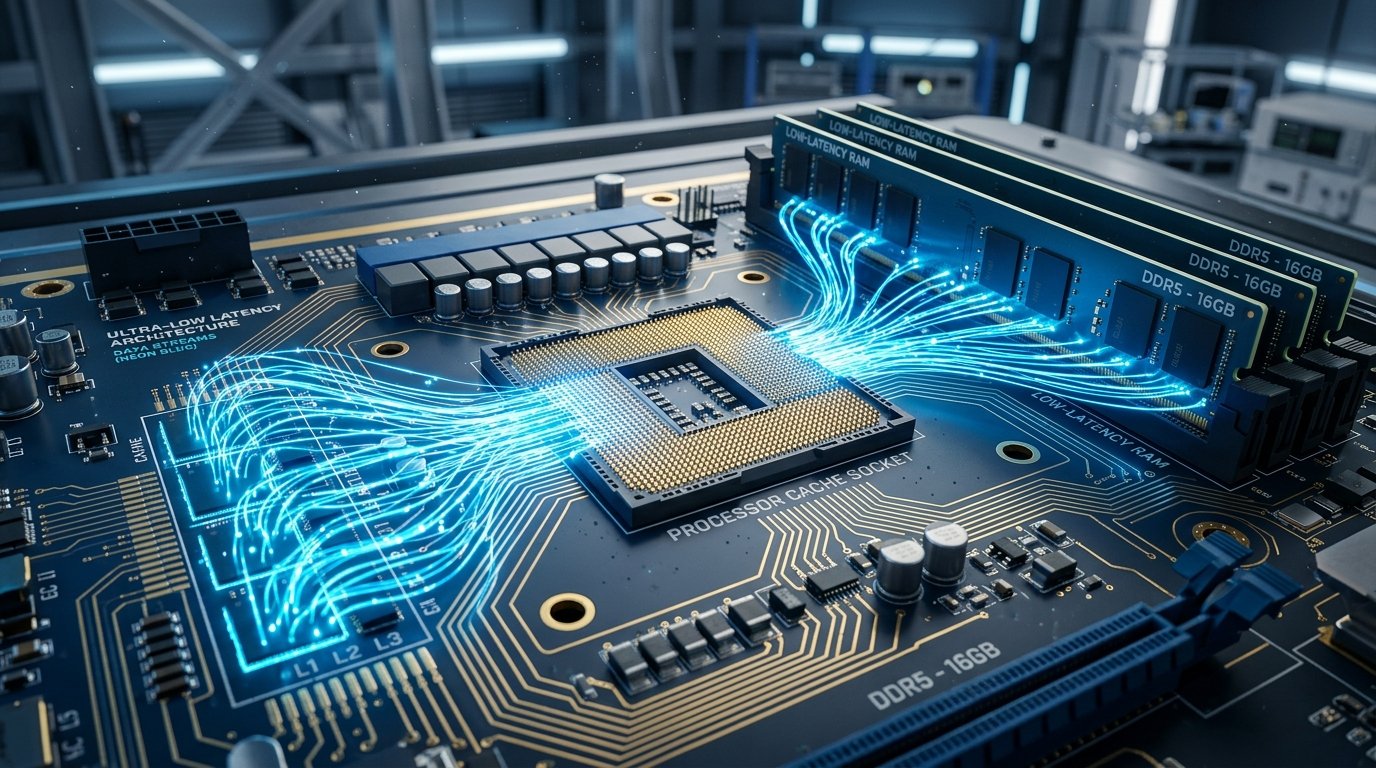
Windows 11 utilizes an in-memory compression pipeline to avoid swapping pages out to SSD storage. While beneficial on systems with 4 GB or 8 GB of RAM, on developer workstations equipped with 32 GB, 64 GB, or 128 GB of DDR5 memory, the CPU cycles spent compressing and decompressing pages introduce measurable cache thrashing.
5. Advanced Hardening: Paging File Optimization
By default, the Windows memory manager dynamically resizes the pagefile.sys virtual memory file on disk. Every time the OS expands or contracts the file allocation table, disk I/O freezes momentarily. Administrators should configure a static, contiguous pagefile on the fastest NVMe PCIe 4.0/5.0 drive with identical minimum and maximum values (e.g., 8192 MB).
6. Operational Windows Maintenance Protocol
Maintain consistent benchmarks by executing DISM image component cleanup and SFC verification monthly. Technical documentation on the Windows NT kernel can be reviewed via Microsoft's official Windows Driver Architecture Documentation.
Editorial note: figures and ranges in this article are typical values compiled from vendor specifications, standards documents, and general industry references. They are illustrative and are not laboratory measurements made by WRLDU, so your own results will differ. See our Editorial Policy for how we write and update guides.