Internet Speed Test for Live Streamers: How to Calibrate OBS, Twitch & YouTube Bitrate for Zero Dropped Frames
Struggling with dropped frames in OBS Studio? Master the streamer speed test methodology to calculate safe upload bitrates, audit network jitter, and broadcast smooth 1080p60 and 4K60 video to Twitch, YouTube, and Kick.
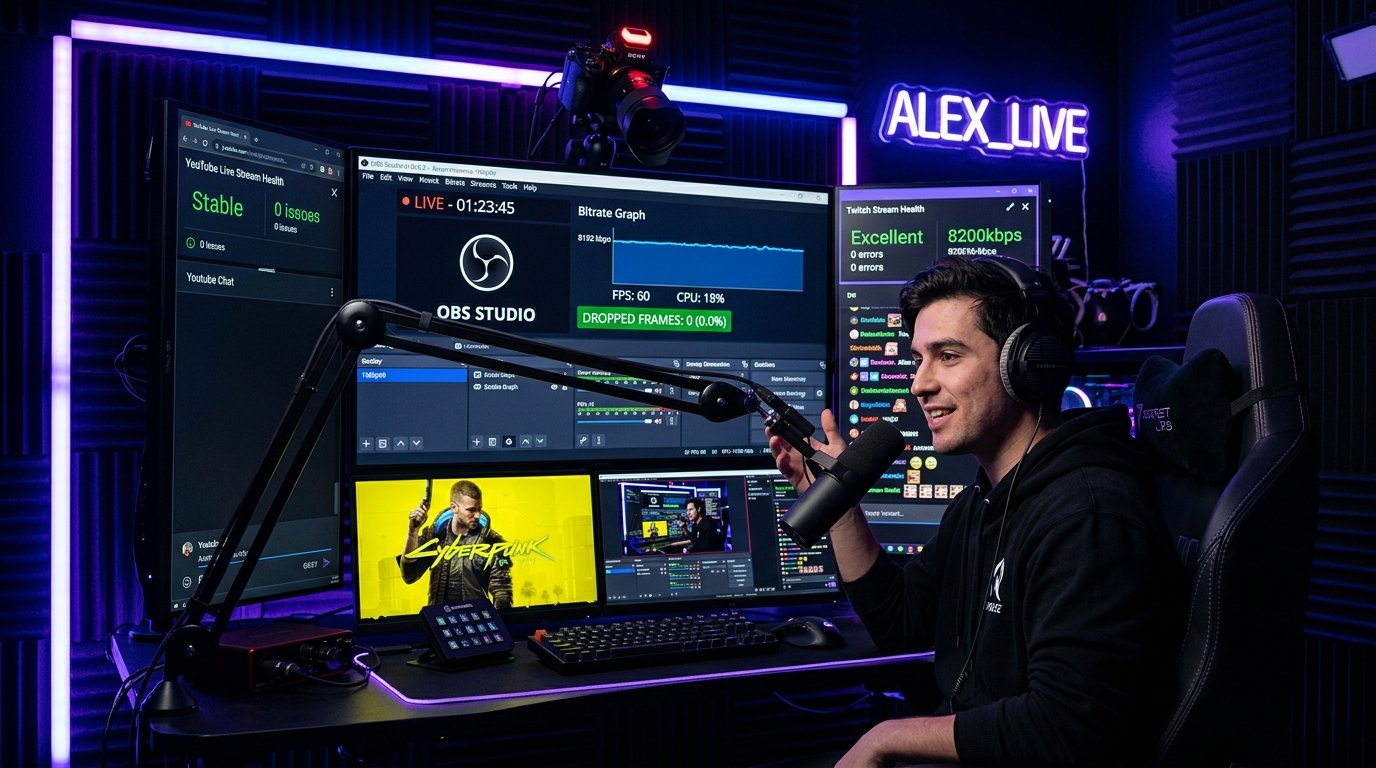
For live streamers on Twitch, YouTube Live, and Kick, the standard metrics of internet performance are completely inverted. While everyday consumers care almost exclusively about download speed for streaming 4K Netflix or downloading games, a live broadcaster relies 100% on continuous, unthrottled, jitter-free upload throughput. A connection that boasts 800 Mbps download speed but fluctuates wildly on upload will choke OBS Studio, resulting in dropped frames, pixelated broadcasts, and viewer disconnections.
Streaming video in real time is fundamentally unforgiving. Unlike watching a pre-buffered YouTube video, your broadcast software cannot pause time to re-send lost data packets. If a TCP window stalls for even 250 milliseconds, OBS Studio must discard video frames to maintain real-time synchronization. In this technical calibration guide, we show you how to perform a specialized upload speed test, calculate your exact safe bitrate margin, and achieve a flawless 0.0% dropped frames broadcast.
1. The Streamer's Speed Test Rule: The 30% Safety Overhead Buffer
The single most common mistake made by new content creators is setting their OBS video bitrate equal to their measured upload speed. If your speed test shows 10 Mbps upload, you cannot stream at 10,000 kbps (10 Mbps). Here is why:
- TCP/IP & RTMP Protocol Overhead: Audio packets (AAC/Opus), TLS encryption, transport container headers, and RTMP signaling consume 5% to 8% of additional bandwidth above your video bitrate.
- ISP Upload Burst Depletion: Many cable (DOCSIS) ISPs provide brief upload speed boosts during the first 5 seconds of a test before throttling back to standard sustained limits.
- Local Concurrency: Background game communications (Discord voice, multiplayer game telemetry, cloud saves) compete for the same upstream pipe.
The Golden Telecommunications Rule: Your total broadcast bitrate (Video + Audio) should never exceed 70% of your minimum sustained upload speed measured over multiple tests.
| Measured Upload Speed (WRLDU) | Max Safe Total Bitrate (70% Cap) | Recommended Resolution & FPS | Platform Target |
|---|---|---|---|
| 5 Mbps (5,000 kbps) | 3,500 kbps (3.5 Mbps) | 720p @ 60 FPS or 1080p @ 30 FPS | Twitch (Affiliate / Non-Partner) |
| 10 Mbps (10,000 kbps) | 6,000 \u2013 7,000 kbps | 1080p @ 60 FPS (Crisp Esports) | Twitch (Standard ingest limit: 6,000\u20138,000 kbps) |
| 20 Mbps (20,000 kbps) | 12,000 \u2013 14,000 kbps | 1440p @ 60 FPS (High Fidelity) | YouTube Live (RTMP / H.264) |
| 50 Mbps+ (Fiber Symmetrical) | 20,000 \u2013 35,000 kbps | 4K UHD @ 60 FPS (AV1 / HEVC) | YouTube Live / Enhanced RTMP |
2. Diagnosing Dropped Frames: Network vs. Rendering vs. Encoding
When OBS Studio stutters, inspect the bottom status bar or the View → Stats window. OBS categorizes dropped frames into three distinct failure domains:
- "Frames Dropped (Network)": This is 100% an internet transmission issue. The network interface card cannot deliver video data to the Twitch/YouTube ingest server as fast as the encoder produces it. Culprits include Wi-Fi packet drops, ISP upstream throttling, or an unrealistically high bitrate setting.
- "Skipped Frames Due to Encoding Lag": This is a hardware GPU/CPU bottleneck. Your graphics card encoder (NVENC, AMF, QuickSync) or CPU (x264) is overloaded and cannot compress frames in real-time. Lower your encoder preset (e.g., from P7/Slow to P5/Medium).
- "Render Lag": This is a GPU 3D rendering bottleneck caused by running a game at unlocked frame rates, leaving insufficient GPU headroom for OBS scene composition. Cap your in-game frame rate to match your monitor's refresh rate.
3. Step-by-Step: Calibrating Your Stream with WRLDU Diagnostics
Before launching your broadcast, follow this 4-step diagnostic protocol:
- Run Multi-Pass Upload Tests: Open WRLDU Unthrottled Speed Test and run three consecutive tests at different times of day (morning, afternoon, and evening peak hours). Record your lowest observed upload speed.
- Audit Packet Jitter: Launch the WRLDU Live Ping & Jitter Tool. For smooth live streaming, your RFC packet jitter should remain strictly below 3 ms. If jitter fluctuates wildly (> 15 ms), you are losing packets over Wi-Fi or experiencing upstream cable line noise.
- Configure OBS Output Settings:
- Rate Control: Set strictly to CBR (Constant Bitrate). Never use VBR (Variable Bitrate) for live streaming, as sudden complex scenes will cause bitrate spikes that trigger network drops.
- Keyframe Interval: Set to 2 seconds (mandatory for Twitch and YouTube ingest servers).
- Audio Bitrate: Set to 160 kbps or 192 kbps AAC.
- Enable Dynamic Bitrate (Network Safety Net): In OBS Studio, open Settings → Advanced → Network. Check the box for "Dynamically change bitrate to manage congestion (Beta)". If your ISP experiences momentary congestion, OBS will automatically drop your bitrate temporarily rather than freezing your broadcast!
4. Protocol Evolution: RTMP vs. SRT vs. WebRTC
While legacy RTMP (Real-Time Messaging Protocol) has powered live streaming for two decades, modern broadcasters are migrating to advanced protocols:
- SRT (Secure Reliable Transport): An open-source video transport protocol designed to deliver high-quality video across unpredictable public internet connections. SRT uses advanced packet loss recovery (ARQ) that re-requests dropped packets within a configurable latency window, allowing flawless streams even on connections with 5% to 10% packet loss.
- Enhanced RTMP & AV1: YouTube now supports Enhanced RTMP with next-generation AV1 and HEVC (H.265) codecs. AV1 delivers superior visual clarity at 40% lower bitrates compared to legacy H.264\u2014allowing streamers on modest 10 Mbps connections to broadcast stunning 1440p60 content.
5. Streamer Hardware Checklist
- Never Stream Over Wi-Fi: Always connect your streaming PC directly to your router with a certified Cat6 Ethernet cable. Wi-Fi packet drops are the #1 cause of network-related dropped frames.
- Enable TCP Pacing / Low Latency Mode: In OBS Advanced Network settings, select your network adapter binding and enable "Enable network optimizations".
- Verify ISP MTU: Ensure your router MTU is set to 1500 to prevent TCP packet fragmentation during heavy upstream transfers.
Editorial note: figures and ranges in this article are typical values compiled from vendor specifications, standards documents, and general industry references. They are illustrative and are not laboratory measurements made by WRLDU, so your own results will differ. See our Editorial Policy for how we write and update guides.