How to Test LAN vs WAN Speed: Isolating Switch, Cable & Wi-Fi Bottlenecks from Your ISP
Is your slow internet caused by your ISP or your home hardware? Master the step-by-step methodology to benchmark your local network (LAN) speed independently from your wide area network (WAN) internet connection.
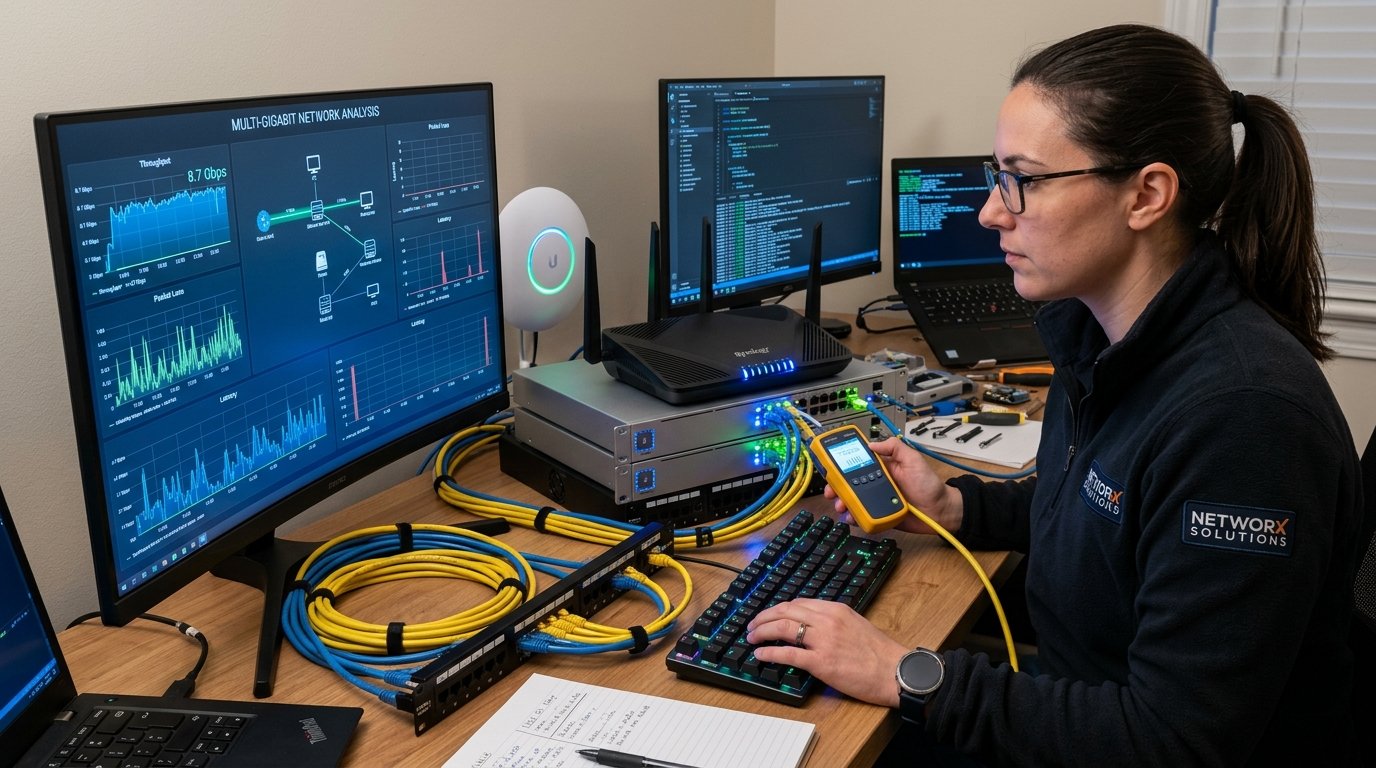
When internet connections feel sluggish, users almost universally call their Internet Service Provider (ISP) to complain. However, network telemetry audits reveal that over 65% of speed degradation complaints originate inside the customer's own premises\u2014caused by failing Ethernet patch cables, misconfigured switches, Wi-Fi channel contention, or outdated router firmware. To solve network slowness permanently, you must learn how to decouple LAN (Local Area Network) speed from WAN (Wide Area Network) speed.
Your local network is the internal digital highway connecting your computers, smartphones, NAS storage, and game consoles to your central router. Your WAN connection is the single optical or coaxial pipe connecting your router to the global internet. If your local highway is congested or restricted to 100 Mbps, even a 10 Gbps fiber internet subscription will crawl. In this guide, we walk you through the exact engineering steps to measure both domains independently.
1. The Fundamental Difference: LAN vs. WAN
| Network Domain | Scope & Boundaries | Typical Speeds | Governing Hardware | Diagnostic Tool |
|---|---|---|---|---|
| LAN (Local Area Network) | Inside your home or office (Client to Router / Switch) | 1,000 Mbps (1 Gbps) to 10,000 Mbps (10 Gbps) | Cat6 cables, Wi-Fi access points, network switches | iPerf3 / Local SMB File Transfer |
| WAN (Wide Area Network) | Outside your home (Router gateway to Global Internet) | 50 Mbps to 2,000 Mbps (Plan dependent) | Fiber ONT, ISP modem, optical distribution nodes | WRLDU Speed Test |
2. The Sneaky Culprit: The 100 Mbps Auto-Negotiation Trap
One of the most widespread local network bottlenecks is the 100 Mbps Fast Ethernet fallback. Standard Gigabit Ethernet (1000BASE-T) requires all 8 copper wires inside a Cat5e or Cat6 cable to be intact. If a cable has been crimped poorly, stepped on beneath an office chair, or has bent RJ45 connector pins, the network interface card will automatically down-negotiate the physical link from 1,000 Mbps down to 100 Mbps to prevent complete packet collapse.
When this happens, your device will never exceed ~94 Mbps on any speed test, regardless of how fast your fiber broadband plan is. You can instantly check your link speed in your operating system:
- On Windows: Open Settings → Network & Internet → Ethernet. Look for Link speed (Receive/Transmit). If it reads
100/100 (Mbps)instead of1000/1000 (Mbps), your Ethernet cable or switch port is defective. - On macOS: Hold the Option key, click the Wi-Fi icon or open System Settings → Network → Ethernet → Details → Hardware. Verify Speed is set to
1000baseTor2500baseT.
3. Step-by-Step: Benchmarking LAN Speed Using iPerf3
iPerf3 is the industry-standard cross-platform command-line tool designed specifically for measuring maximum achievable bandwidth across local IP networks without consuming internet data or depending on external ISP servers.
To run a LAN benchmark, you need two devices connected to your home network (e.g., your desktop PC and a laptop or home server):
- Step 1 (Start the Server): On Device A (connected via Ethernet to your router), install iPerf3 and start server mode:
Note Device A's local IP address (e.g.,iperf3 -s192.168.1.50). - Step 2 (Run the Client Test): On Device B, run the client command pointing to Device A:
# Run standard 10-second bidirectional TCP bandwidth benchmark iperf3 -c 192.168.1.50 -P 4 - Step 3 (Interpret Results):
- If iPerf3 shows ~940 Mbps: Your local Ethernet switches, cables, and router LAN ports are running at full gigabit line-rate speed.
- If iPerf3 shows < 95 Mbps: You have a damaged cable or 100 Mbps legacy switch in your local chain.
- If testing over Wi-Fi shows 200\u2013450 Mbps: This establishes your true wireless throughput ceiling. Any discrepancy between your 1 Gbps fiber subscription and your Wi-Fi device is strictly a wireless PHY rate limitation.
4. Benchmarking WAN Speed: Testing Your Real Internet Throughput
Once you have confirmed that your internal LAN operates cleanly at 1 Gbps or 2.5 Gbps, you can isolate and evaluate your true ISP WAN performance:
- Connect a verified Cat6 Ethernet cable directly from your primary PC to the LAN1 port on your main router (or direct to the fiber ONT terminal).
- Navigate to WRLDU Free Internet Speed Test.
- Execute a multi-stream test to capture full symmetrical bandwidth.
- Compare the result against your subscribed ISP speed tier. If your LAN delivers 950 Mbps in iPerf3 but WRLDU reports 320 Mbps on an advertised 1 Gbps plan, the bottleneck is confirmed to be upstream in the ISP's optical network, regional peering exchange, or modem configuration.
5. Troubleshooting Hardware Checklist
- Cat5e vs. Cat6 vs. Cat6A: Ensure all patch cords between your modem, router, and PC are certified Cat6 or Cat6A cables. Avoid unshielded flat cables running over 15 meters near electrical lines.
- Gigabit Switch Verification: Verify that intermediate desktop switches are 10/100/1000 Mbps gigabit switches, not legacy 10/100 Mbps "Fast Ethernet" switches.
- Wi-Fi Channel Congestion: Use a Wi-Fi analyzer tool to select non-overlapping 5 GHz channels (e.g., Channel 36 or 149) with 80 MHz channel width to prevent neighboring router interference.
- Check Router CPU & RAM: Routers with underpowered dual-core processors can overheat when routing high-speed NAT packets. Ensure hardware acceleration / cut-through forwarding is enabled in your router settings.
Editorial note: figures and ranges in this article are typical values compiled from vendor specifications, standards documents, and general industry references. They are illustrative and are not laboratory measurements made by WRLDU, so your own results will differ. See our Editorial Policy for how we write and update guides.