How to Boost Internet Speed: 12 Proven Steps to Fix Slow Network & Eliminate Lag Spikes
Tired of slow internet, buffering video, or sudden lag spikes? Follow this 12-step engineering checklist to eliminate network congestion, optimize TCP window sizes, fix Wi-Fi channel overlap, and maximize broadband throughput.
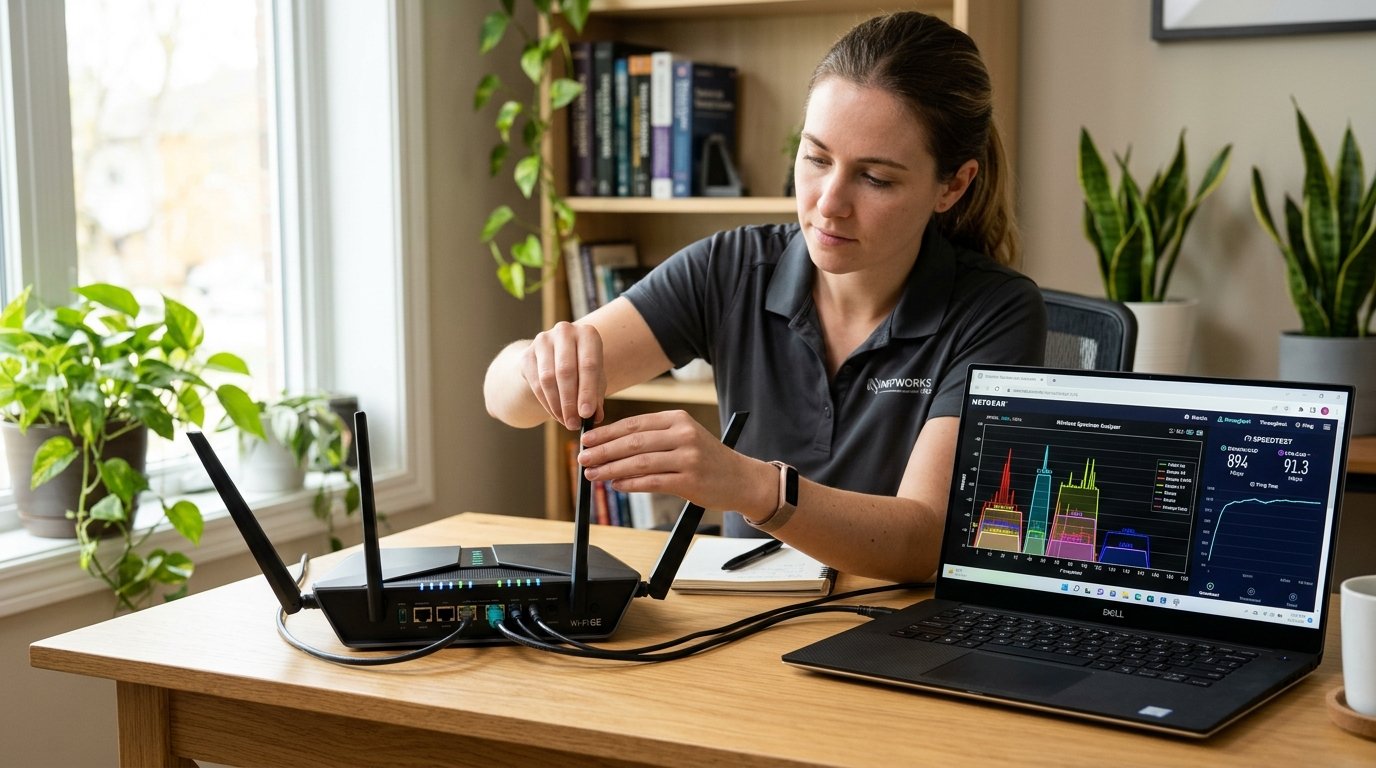
Nothing is more frustrating than paying for a high-speed broadband subscription only to endure sluggish web page loading, pixelated video streams, and sudden ping spikes while gaming. In over 80% of residential network audits, the bottleneck is not the internet provider's fiber line, but misconfigured local router settings, wireless frequency congestion, or outdated network interface drivers.
In this comprehensive guide, our network engineering team outlines 12 proven, actionable steps to maximize your throughput, eliminate bufferbloat, and achieve the lowest possible latency on your home or office network.
The 12-Step Network Optimization Protocol
1. Migrate All High-Bandwidth Devices to 5 GHz or 6 GHz Wi-Fi
The legacy 2.4 GHz wireless spectrum is overcrowded by neighboring routers, Bluetooth devices, and microwave ovens. Furthermore, 2.4 GHz channels are constrained to 20 MHz or 40 MHz widths, capping real-world speed at 40\u201360 Mbps. Connect laptops, PCs, gaming consoles, and smart TVs to the 5 GHz (80/160 MHz) or 6 GHz (Wi-Fi 6E/7 320 MHz) bands for multi-hundred-megabit throughput.
2. Deploy Cat6 or Cat6a Shielded Ethernet for Gaming & Workstations
No wireless signal\u2014regardless of how expensive your router is\u2014can match the deterministic reliability of a physical copper wire. A standard Cat6 Ethernet cable delivers up to 10 Gbps throughput with zero radio frequency interference, zero packet jitter, and a flat 0.5 ms local latency floor.
3. Enable Smart Queue Management (SQM) to Crush Bufferbloat
If your ping spikes from 20 ms to 250 ms whenever a family member downloads a file or streams video, your router suffers from bufferbloat. Access your router's administrative settings and enable Smart Queue Management (SQM) using the CAKE or fq_codel algorithm. SQM dynamically schedules interactive packets ahead of bulky bulk transfers, keeping gaming ping rock-solid even under 100% bandwidth saturation.
4. Switch to High-Performance Anycast DNS Resolvers
Default ISP DNS servers are notoriously slow, poorly cached, and frequently log browsing habits. Switch your router or device DNS settings to leading privacy-centric Anycast resolvers:
- Cloudflare DNS: Primary
1.1.1.1\u2022 Secondary1.0.0.1(Fastest global resolution) - Google Public DNS: Primary
8.8.8.8\u2022 Secondary8.8.4.4(Highly reliable Anycast routing) - Quad9 (Security Filtered): Primary
9.9.9.9\u2022 Secondary149.112.112.112(Blocks malicious malware domains)
Benchmark your current DNS resolution speed using our DNS Speed Benchmark.
5. Optimize TCP Window Auto-Tuning on Windows 11 / 10
If your Windows PC fails to achieve full gigabit speeds on a wired connection, your TCP receive window may be artificially restricted. Open PowerShell as Administrator and execute:
netsh int tcp set global autotuninglevel=normalThis allows Windows to dynamically expand the TCP window buffer to match your line's full bandwidth-delay product.
6. Scan for Wi-Fi Channel Overlap and Select Clear Channels
Use a free Wi-Fi analyzer app on your smartphone or laptop to scan surrounding wireless networks. In the 5 GHz band, select non-overlapping channels (such as Channel 36, 44, 149, or 157) or channels in the DFS range (Channel 52\u2013144) where neighboring networks are virtually non-existent.
7. Update Network Adapter Drivers (NIC)
Outdated Ethernet controller drivers (Realtek, Intel I225-V/I226-V, Marvell AQtion) frequently suffer from firmware sleep bugs and packet storm leaks. Always download the latest official drivers directly from the controller manufacturer's support portal.
8. Position Your Router in an Elevated, Central Location
Wi-Fi signals propagate outward and downward like an umbrella. Placing your router inside a closed metal cabinet, on the floor, or behind a large smart TV degrades signal strength by up to 15 dB. Mount your router at least 4 to 5 feet off the floor in a central, unobstructed hallway or room.
9. Disable Background Cloud Sync During Peak Hours
Applications like OneDrive, Google Drive, iCloud, and Dropbox constantly scan for file modifications and upload large sync batches in the background. Because residential cable connections have limited upload bandwidth (10\u201335 Mbps), background syncs saturate upstream queues. Throttle sync upload speeds inside app preferences or pause syncing during gaming sessions.
10. Disable Energy-Efficient Ethernet (EEE) Stalls
Energy-Efficient Ethernet (IEEE 802.3az) attempts to put your physical Ethernet port into low-power sleep states during brief idle intervals. On gaming PCs, this can introduce micro-delays (stutters) when sudden bursts of packets arrive. Open Device Manager > Network Adapters > Properties > Advanced, and disable "Energy Efficient Ethernet" and "Green Ethernet".
11. Restart Modem and Router Monthly
Home modems and routers are dedicated embedded Linux computers with RAM and flash storage. Over weeks of continuous operation, routing NAT tables, connection state tracking logs, and DNS caches accumulate in memory. A quick 60-second power cycle clears stale routing buffers and forces the modem to renegotiate optimal downstream carrier channels with the ISP.
12. Audit Your Baseline with WRLDU Speed Test
Before making adjustments, record your baseline metrics on WRLDU Speed Test. Apply optimizations one at a time and retest to quantify exact throughput gains, latency drops, and jitter improvements.
Frequently Asked Questions (FAQ)
Can a new Wi-Fi 7 router really increase my speed?
Yes. If your current router is more than 4 years old, upgrading to a modern Wi-Fi 6E or Wi-Fi 7 router adds access to the pristine, interference-free 6 GHz frequency band, multi-gigabit 2.5 Gbps Ethernet WAN ports, and Multi-Link Operation (MLO) that delivers gigabit wireless throughput to compatible smartphones and laptops.
Do Wi-Fi range extenders reduce internet speed?
Traditional single-band Wi-Fi range extenders must receive and retransmit every data packet over the same wireless channel, instantly cutting effective throughput by 50%. If you need expanded coverage across a large house, invest in a dedicated tri-band Wi-Fi Mesh system with a dedicated wireless backhaul or wired Ethernet backhaul.
Editorial note: figures and ranges in this article are typical values compiled from vendor specifications, standards documents, and general industry references. They are illustrative and are not laboratory measurements made by WRLDU, so your own results will differ. See our Editorial Policy for how we write and update guides.