The Complete 10 Gbps Home & Office Network Upgrade Guide: Cat6A vs SFP+ Fiber, Multi-Gig Switches & NIC Optimization
A comprehensive engineering guide to building a real 10 Gigabit per second local network. Compare 10GBASE-T copper vs SFP+ optical fiber, select the right PCIe NICs and multi-gig switches, and tune Jumbo Frames and TCP buffers to achieve 1,200+ MB/s transfers.
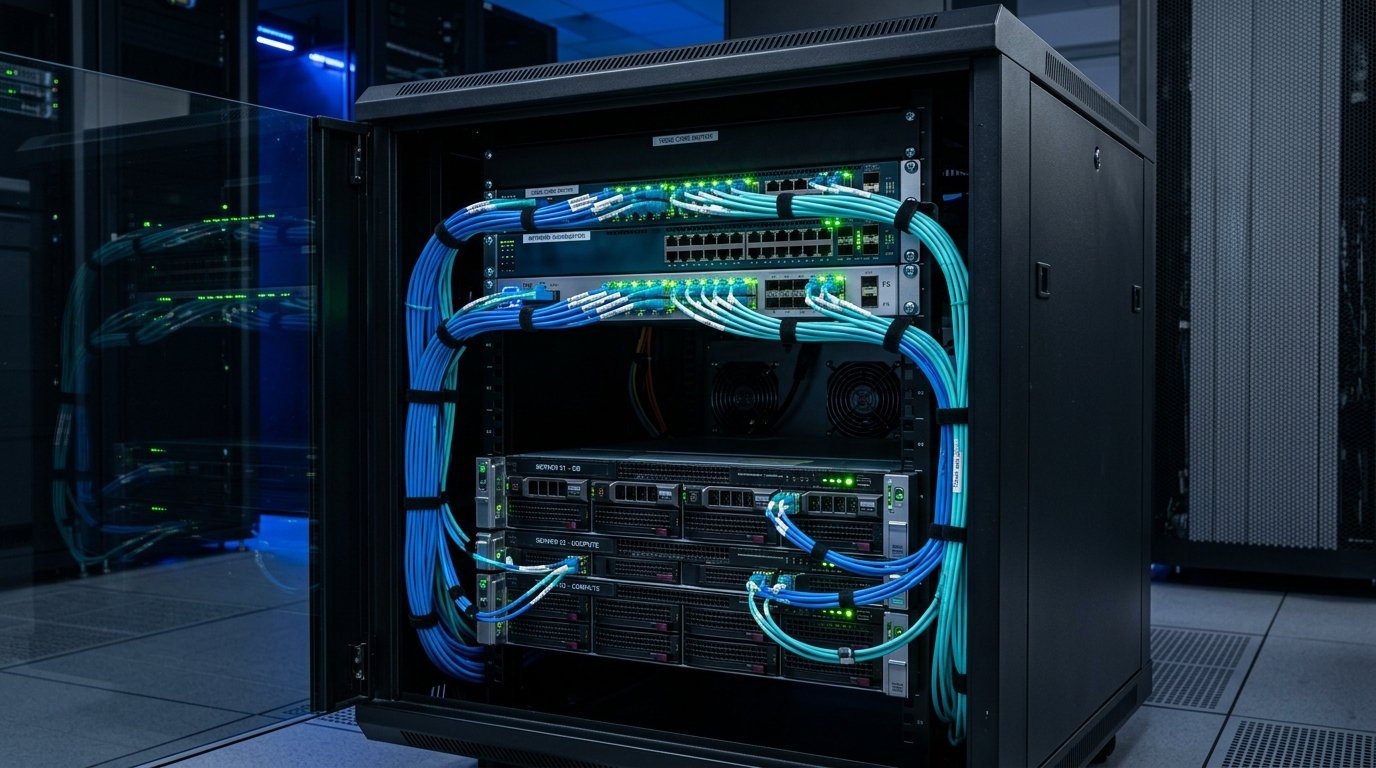
For nearly twenty-five years, 1 Gigabit Ethernet (1000BASE-T) has been the ubiquitous standard for home and office networking. Delivering approximately 115 to 120 megabytes per second (MB/s) of real-world file transfer speed, 1GbE was once faster than the mechanical hard disk drives it served. Today, however, multi-gigabit fiber broadband (2.5 Gbps, 5 Gbps, and 10 Gbps ISP connections), 8K video production, high-capacity Network Attached Storage (NAS), and PCIe 5.0 NVMe solid-state drives have made standard gigabit Ethernet the most frustrating bottleneck in modern computing.
Upgrading your local area network (LAN) to 10 Gigabit Ethernet (10GbE) unlocks transfer speeds exceeding 1,200 megabytes per second (1.2 GB/s)—moving a 100 GB game backup or video project in less than 90 seconds. However, building a successful 10GbE network requires understanding the crucial differences between copper cabling and optical fiber, managing heat and power consumption, selecting PCIe network interface cards (NICs), and tuning operating system network stacks. Here is the definitive, step-by-step engineering blueprint.
1. 10GBASE-T Copper vs. SFP+ Optical Fiber: The Critical Choice
The first and most important architectural decision is whether to deploy copper RJ45 wiring (10GBASE-T) or SFP+ (Small Form-factor Pluggable Plus) transceivers and optical fiber. Each technology possesses distinct advantages and trade-offs.
| Specification Metric | 10GBASE-T (RJ45 Twisted Copper) | SFP+ Direct Attach Copper (DAC) | SFP+ Optical Fiber (LC Multi-Mode OM4) |
|---|---|---|---|
| Connector Type | Standard RJ45 modular jack | Integrated SFP+ twinaxial cable | LC duplex fiber optic connector |
| Maximum Distance | Up to 100 meters (using Cat6A) | 1 to 7 meters (short distance) | Up to 300 to 550 meters (OM3/OM4) |
| Power Consumption per Port | High (~2.5W to 5.0W per port) | Ultra-Low (~0.1W per port) | Low (~0.8W to 1.0W per port) |
| Thermal Heat Generation | Extremely hot; requires active cooling | Virtually cool to the touch | Negligible heat generation |
| Physical Port Latency | ~1.5 to 2.5 microseconds (PHY processing) | ~0.1 microseconds (almost zero) | ~0.1 microseconds (laser modulation) |
| Ideal Deployment Zone | Structured in-wall building wiring | Direct rack interconnects (PC to Switch) | Inter-floor runs, studio links, long distances |
The Engineering Verdict
Within a single room or equipment rack: Always use SFP+ DAC cables. They are plug-and-play, run completely cool, consume almost zero power, and deliver the lowest latency possible.
Between rooms or through walls: Use pre-terminated OM4 multi-mode fiber if pulling new cables, or certified Cat6A copper if you already have existing RJ45 wall plates.
2. Structured Cabling Demystified: Cat5e vs Cat6 vs Cat6A
A common misconception is that 10 Gbps requires exotic and expensive Cat7 or Cat8 cables. In reality, standardized Cat6 and Cat6A handle virtually all residential and commercial requirements.
- Cat5e: Certified only up to 1 Gbps (100 MHz). While 2.5GbE can sometimes negotiate over short, high-grade Cat5e runs, it will completely fail to establish a stable 10 Gbps link.
- Cat6 (Unshielded/UTP): Certified to 250 MHz. Cat6 reliably supports 10 Gbps up to a distance of 35 to 55 meters (110 to 180 feet) in environments with low electromagnetic interference (EMI). For average-sized homes, existing Cat6 wiring can often support 10GBASE-T without rewiring!
- Cat6A (Augmented / Shielded F/UTP): Certified to 500 MHz. Cat6A guarantees full 10 Gbps throughput across the maximum allowable standard distance of 100 meters (328 feet), with complete immunity to Alien Crosstalk (ANEXT). This is the gold standard for all new installations.
- Cat7 and Cat8: Cat7 is a proprietary non-TIA standard utilizing non-RJ45 GG45 connectors. Cat8 is designed exclusively for short 30-meter top-of-rack datacenter connections and is unnecessary for residential or creative studio environments.
3. Selecting the Right 10GbE Network Interface Card (NIC)
To connect a desktop PC, workstation, or NAS server to a 10GbE network, you need a dedicated PCIe expansion card. Pay close attention to the PCIe generation and lane width required by the card.
PCIe Bandwidth Mathematics
A 10 Gbps network stream transmits 1.25 GB/s in each direction (2.5 GB/s full duplex). Therefore, a 10GbE card requires at least PCIe 2.0 x4 or PCIe 3.0 x2 / x4 physical slot connectivity to avoid bus throttling. Plugging a 10GbE NIC into an open PCIe x1 slot will bottleneck the card to approximately 4 Gbps.
Recommended 10GbE Network Chipsets
- Intel X540 / X550-T2 (RJ45 10GBASE-T): The gold standard for enterprise stability. Features native driver support in Windows 10/11, macOS, Linux, and TrueNAS. The newer X550 runs significantly cooler than the legacy X540.
- Mellanox (NVIDIA) ConnectX-3 / ConnectX-4 Lx (SFP+): The undisputed champion for budget-conscious home lab enthusiasts. Available inexpensively on secondary enterprise markets, ConnectX cards run cool, consume minimal power, and offer flawless Linux/Proxmox/FreeBSD compatibility.
- Marvell Aquantia AQC107 / AQC113 (Multi-Gig RJ45): Common on high-end consumer motherboards (Asus, Gigabyte, ASRock). Supports full 10G, 5G, 2.5G, and 1G auto-negotiation, making it ideal for connecting to multi-gigabit ISP fiber gateways.
- Intel X520-DA2 (SFP+): An ultra-reliable enterprise workhorse, though ensure firmware accepts generic transceivers (optics) without vendor lock restrictions.
4. Multi-Gigabit Switches & Non-Blocking Backplanes
When selecting a network switch, verify that the unit features a non-blocking switching fabric. A switch with eight 10GbE ports requires an internal backplane capacity of at least 160 Gbps (8 ports × 10 Gbps × 2 full-duplex) to guarantee that all ports can transmit simultaneously at maximum line speed without packet drops or buffer congestion.
For modern mixed home networks, hybrid switches (such as 4 to 8 ports of 2.5GbE alongside 2 to 4 ports of 10GbE SFP+) offer the ideal balance of cost, whisper-quiet fanless operation, and performance.
5. Operating System & Protocol Stack Tuning for 10GbE
Simply plugging in 10GbE hardware will not automatically deliver 10 Gbps throughput. Default operating system networking parameters are tuned for standard 1 Gbps connections and must be optimized.
Step 1: Enable Jumbo Frames (MTU 9000)
Standard Ethernet transmits data in frames limited to a Maximum Transmission Unit (MTU) of 1,500 bytes. At 10 Gbps, your computer's CPU must process over 800,000 packets per second, generating massive CPU interrupt overhead.
Enabling Jumbo Frames (MTU 9000 bytes) reduces packet volume by a factor of six (to roughly 138,000 packets per second), dramatically lowering CPU utilization and increasing throughput:
- In Windows: Device Manager → Network Adapters → Properties → Advanced → Jumbo Packet → Set to 9014 Bytes or 9KB MTU.
- In Linux / TrueNAS: Set
mtu 9000in network interface configuration. - Critical Warning: Every device on the local subnet (PC, NAS, Switch) must support and enable MTU 9000. If an intermediate switch does not support jumbo frames, packets will be fragmented or discarded.
Step 2: Tune Receive Side Scaling (RSS) & Interrupt Moderation
Ensure that Receive Side Scaling (RSS) is enabled in your NIC driver properties. RSS distributes incoming network packet processing across multiple physical CPU cores rather than overloading Core 0. Keep Interrupt Moderation enabled to allow the NIC hardware to batch incoming packets before interrupting the processor.
Step 3: Storage Speed Verification (The NVMe Requirement)
To transfer files across a 10GbE network at full line speed (1,250 MB/s), the underlying storage drives on both ends must be capable of sustaining those speeds:
- Single Mechanical HDD: ~150 to 220 MB/s (Bottlenecks 10GbE to ~1.5 Gbps).
- SATA III SSD: ~520 MB/s (Bottlenecks 10GbE to ~4.5 Gbps).
- PCIe 3.0 / 4.0 NVMe SSD: 3,500 to 7,000 MB/s (Fully saturates 10GbE line speed!).
- Multi-Drive RAID Z2 / RAID 10 Array: 6 to 8 spinning disks can easily saturate 10GbE when configured with an SSD caching tier.
6. Benchmarking & Validating True 10 Gbps Line Speed
Never test a local 10GbE link by copying a single Windows SMB file, as file system overhead, antivirus scanning, and drive caching distort results. Instead, benchmark pure network throughput using iPerf3:
# On the Server (e.g. NAS or secondary PC):
iperf3 -s
# On your Client PC (Multi-stream test across 4 parallel TCP sockets):
iperf3 -c 192.168.1.50 -P 4 -t 15
A properly tuned 10GbE setup will report a steady result between 9.40 Gbps and 9.85 Gbps (accounting for standard TCP/IP packet header overhead).
Once your local LAN is validated, test your real-world internet speed and broadband ISP throughput using WRLDU Speed Test to ensure your multi-gig WAN connection delivers unthrottled performance.
Frequently Asked Questions (FAQ)
Do 10GBASE-T RJ45 SFP+ transceiver modules overheat?
Yes. 10GBASE-T transceivers generate significant heat (often reaching 65°C to 75°C) because converting SFP+ serialized data into complex 10GBASE-T pulse-amplitude modulation (PAM-16) requires substantial power. In fanless switches, limit the number of adjacent 10GBASE-T SFP+ copper modules, or use direct SFP+ DAC cables whenever possible.
Can I connect a 2.5 Gbps device to a 10 Gbps SFP+ port?
Most enterprise SFP+ ports only support dual-rate 1G/10G. However, modern multi-rate SFP+ to RJ45 transceivers (such as those powered by the Aquantia AQR113C PHY) support IEEE 802.3bz auto-negotiation at 2.5 Gbps and 5 Gbps, seamlessly bridging consumer multi-gig devices.
How long does it take to transfer a 100 GB file over 10GbE?
Over a standard 1 Gbps connection, a 100 GB transfer takes roughly 15 minutes. Over a saturated 10 Gbps network with NVMe drives, the same 100 GB transfer completes in approximately 82 seconds! You can calculate exact transfer durations for any file size using the WRLDU Transfer Time Calculator.