Cloud Gaming Latency Deep Dive: Decoding NVENC, AV1 vs HEVC, Frame Pacing, and Packet Jitter (GeForce NOW & Moonlight Benchmarks)
An in-depth technical analysis of cloud gaming and remote desktop latency. Discover how hardware video encoding (AV1, HEVC, H.264), WebRTC/RTSP transport pipelines, bufferbloat, and frame pacing affect real-time responsiveness in GeForce NOW, Moonlight, and Xbox Cloud Gaming.
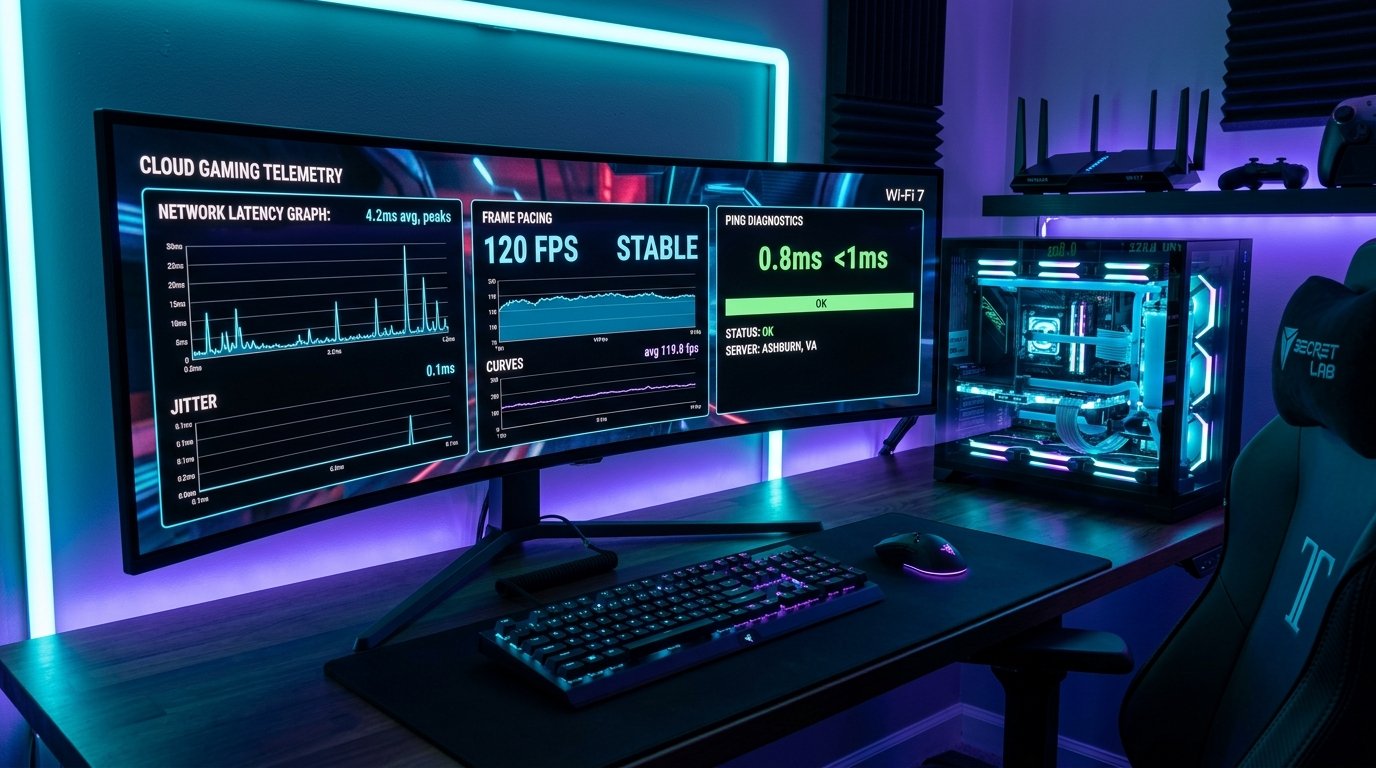
Cloud gaming has evolved from an ambitious, latency-plagued experiment into an authentic esports-grade reality. Platforms like NVIDIA GeForce NOW Ultimate (streaming at 4K 120 FPS / 1080p 240 FPS) and self-hosted low-latency streaming suites like Sunshine & Moonlight have demonstrated that gaming over the internet can feel indistinguishable from a local bare-metal rig—provided your network pipeline is properly engineered.
Yet many gamers with blazing-fast 500 Mbps or 1 Gbps broadband connections still suffer from sluggish mouse responsiveness, micro-stutters, and visual artifacting. Why does this happen? Because in interactive real-time video streaming, raw throughput (Mbps) is virtually meaningless compared to frame pacing, hardware encoding latency, and packet jitter variance. In this deep dive, we dissect every millisecond of the end-to-end cloud gaming telemetry chain.
1. The Four Stages of "Click-to-Photon" Latency
Total latency in cloud gaming—often called Click-to-Photon time—is the duration between pressing a key on your mouse or controller and seeing the resulting action illuminate on your monitor. This timeline is divided into four distinct phases:
| Telemetry Phase | Typical Duration | Key Engineering Factors |
|---|---|---|
| 1. Host Render & Frame Capture | 4.1 ms – 8.3 ms | Game engine tickrate, GPU rendering pipeline at 120 FPS / 240 FPS, DirectX/Vulkan frame capture (NVFBC / Desktop Duplication API). |
| 2. Hardware Video Encoding (NVENC) | 1.8 ms – 3.5 ms | Dedicated hardware ASIC encoders (NVIDIA NVENC, AMD VCN, Intel QuickSync) compressing raw 4K frames into bitstream packets. |
| 3. Network Transmission (RTT + Pacing) | 6.0 ms – 18.0 ms | Physical distance to the datacenter, fiber optic routing, bufferbloat queuing delay, and UDP packet serialization. |
| 4. Client Decoding & Display Refresh | 1.5 ms – 4.5 ms | Client device hardware video decoder, presentation queue, display refresh rate (120 Hz / 240 Hz), and monitor pixel response time. |
The Sub-30ms Esports Benchmark
On a local console or standard 60 Hz PC, typical click-to-photon latency is approximately 55 ms to 80 ms.
On a properly optimized cloud connection (sub-12ms network ping to the edge node, 120 FPS stream with AV1 hardware decoding on a 144 Hz G-Sync monitor), total click-to-photon latency drops to an astonishing 24 ms to 28 ms—faster than an unoptimized local gaming setup!
2. Hardware Video Codecs Compared: AV1 vs HEVC vs H.264
Transmitting 4K video at 120 frames per second uncompressed requires over 24 Gigabits per second of bandwidth—far exceeding consumer internet connections. Real-time video codecs compress this stream down to 50 to 85 Mbps.
| Video Codec | Compression Efficiency | Average Encoding Time (4K) | Client Decoding Hardware Requirement |
|---|---|---|---|
| H.264 (AVC) | Baseline (Older standard) | ~1.6 ms (Fastest) | Universal; supported on almost every legacy device and smart TV. |
| HEVC (H.265) | ~35% better than H.264 | ~2.2 ms | Widely supported on modern Intel/Apple/AMD chips and mobile GPUs. |
| AV1 (Next-Gen) | ~50% better than H.264 | ~2.5 ms (Modern dual-encoders) | Requires recent hardware: RTX 40-series, Apple M3/M4, Intel Arc / Meteor Lake. |
Why AV1 Is a Game Changer for Cloud Gaming
AV1's superior compression efficiency eliminates color banding in dark scenes and foliage shimmer during high-speed motion. In titles with rapid camera rotations (like Cyberpunk 2077 or Apex Legends), an AV1 stream at 65 Mbps matches or exceeds the visual clarity of an older H.264 stream running at 120 Mbps, while drastically reducing network packet volume.
3. The Enemy of Cloud Gaming: Packet Jitter & Bufferbloat
Many gamers assume that having a 1 Gbps fiber subscription guarantees flawless cloud gaming. However, if your router suffers from Bufferbloat or your Wi-Fi connection introduces Packet Jitter, your gameplay experience will stutter uncontrollably.
How Jitter Destroys Real-Time Video Streams
Video streaming services like Netflix or YouTube buffer 30 to 60 seconds of video ahead of time. If a packet is delayed by 200 ms, the pre-buffered playback absorbs the delay invisibly.
In cloud gaming, buffering is impossible because frames are rendered interactively in real time based on your controller inputs. If a video frame packet is delayed by even 15 milliseconds, the client decoder cannot wait—it must either drop the frame (causing a jarring micro-stutter) or display visual compression tearing.
| RFC 3550 Jitter Metric | Cloud Gaming Rating | User Experience Impact |
|---|---|---|
| < 1.0 ms | Esports Competitive | Flawless frame pacing; feels completely local. |
| 1.0 ms – 3.0 ms | Excellent | Smooth 120 FPS gameplay; zero perceived input hesitation. |
| 3.1 ms – 8.0 ms | Moderate | Occasional frame hitching during intense action sequences. |
| > 8.0 ms | Poor / Unstable | Frequent audio crackling, severe frame drops, input lag spikes. |
You can test your line's true jitter stability right now using the WRLDU Live Ping & Jitter Telemetry Engine.
4. Five Steps to Optimize Your Network for Flawless Cloud Gaming
Step 1: Eliminate Wi-Fi in Favor of Direct Ethernet
Wi-Fi is a half-duplex medium subject to radio frequency interference, beamforming recalibration, and airtime contention. Even Wi-Fi 6E/7 routers introduce 2 ms to 6 ms of intermittent jitter spikes compared to a shielded Cat6 Ethernet cable, which delivers rock-solid < 0.3 ms local jitter.
Step 2: Enable Smart Queue Management (SQM) on Your Router
Standard router firmware relies on massive unmanaged FIFO buffers. When someone on your home network starts a cloud backup or downloads a Steam game update, incoming gaming packets are queued behind massive data chunks, causing ping to spike from 12 ms to over 200 ms (Bufferbloat).
Deploying a router with modern SQM algorithms like CAKE or FQ-CoDel (found in OpenWrt, Asuswrt-Merlin, Ubiquiti, and pfSense) isolates latency-sensitive UDP gaming packets, ensuring your ping remains locked at 12 ms even under 100% network upload saturation. Grade your line's bufferbloat performance using the WRLDU Internet Quality Diagnostic.
Step 3: Enable Variable Refresh Rate (G-Sync / FreeSync)
In client applications like Moonlight and GeForce NOW, enable G-Sync / Adaptive Sync. When the cloud server delivers frames at fluctuating intervals (e.g., 118 FPS to 120 FPS), G-Sync synchronizes your physical monitor refresh cycles to frame arrival times, eliminating screen tearing without introducing the heavy input lag of standard V-Sync.
Step 4: Configure Moonlight / Sunshine Optimal Bitrates
- 1080p @ 120 FPS: Set bitrate between 40 Mbps and 55 Mbps (AV1 / HEVC).
- 1440p @ 120 FPS: Set bitrate between 55 Mbps and 75 Mbps.
- 4K @ 120 FPS: Set bitrate between 75 Mbps and 90 Mbps.
- Setting bitrates above 100 Mbps provides negligible visual improvement while increasing decoder queue times on low-power client devices.
Step 5: Select Datacenter Nodes with Direct Peering
Cloud gaming requires proximity. Select cloud edge clusters located within 500 miles (800 km) of your physical location to guarantee a network RTT under 15 ms. Use the WRLDU ASN Lookup to check if your ISP maintains direct settlement-free peering with major cloud network providers.
Frequently Asked Questions (FAQ)
Can I play competitive first-person shooters on cloud gaming?
Yes! With GeForce NOW Ultimate's Reflex 240 FPS mode running over low-jitter fiber broadband, total system latency can be reduced below 30 ms—fully competitive for casual and ranked play in titles like Counter-Strike 2, Apex Legends, and Fortnite.
Why does my cloud game stutter even though my speed test shows 500 Mbps?
Speed tests measure bandwidth throughput, whereas cloud gaming relies on millisecond packet timing. High packet jitter, bufferbloat under load, or packet loss over Wi-Fi will cause severe stutters regardless of how fast your maximum download speed is.
Does using a VPN improve cloud gaming latency?
In 98% of cases, a VPN increases latency because routing encryption adds overhead and redirects traffic through intermediary VPN servers. The only exception is if your ISP intentionally throttles UDP gaming streams or uses horribly congested BGP peering routes that a premium VPN bypasses.
Audit your connection quality and discover whether your network is ready for next-generation cloud gaming on WRLDU Network Speed Test.