Smart TV & 4K/8K Streaming Speed Test: Bitrate Requirements, Buffer Underrun & Wi-Fi Dead Zones
Why do Smart TVs buffer or downgrade resolution despite high-speed home internet? Discover streaming bitrate requirements, the shocking 100 Mbps Ethernet hardware bottleneck on modern TVs, and how to test streaming speed.
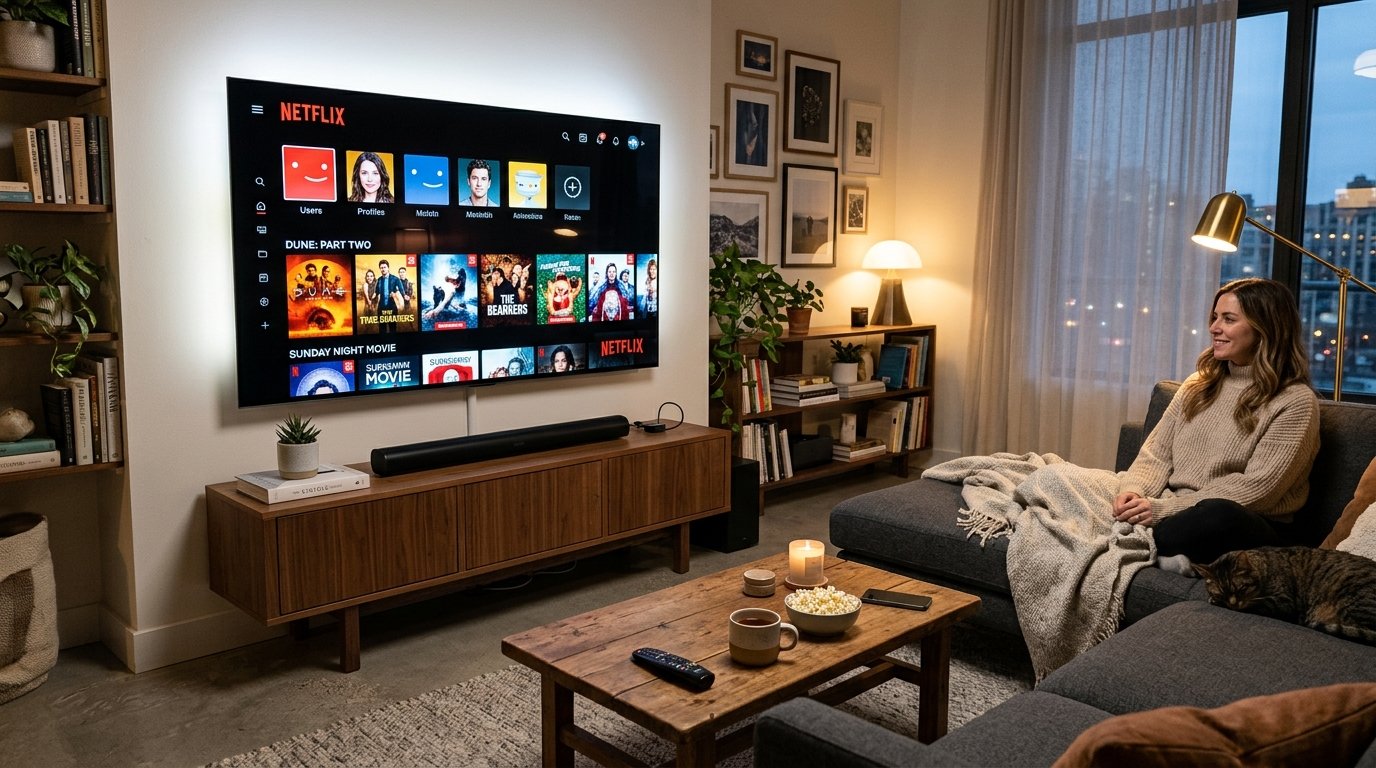
You recently upgraded your home internet to a 500 Mbps or 1 Gbps broadband connection. You sit down in your living room to enjoy a blockbuster movie in 4K HDR Dolby Vision on your new premium OLED Smart TV. Five minutes in, the video freezes, a spinning buffer wheel appears, or the crystal-clear picture abruptly degrades into a blurry pixelated mess. How can a multi-hundred-megabit internet connection fail to stream a single movie smoothly?
Streaming video on Smart TVs is subject to unique hardware limitations and radio frequency hurdles that rarely affect laptops or smartphones. In this comprehensive guide, we dissect the actual bitrate requirements of major streaming platforms, expose the notorious 100 Mbps Ethernet hardware bottleneck found on 95% of modern televisions, and provide an optimization protocol to guarantee buffer-free entertainment.
1. The Real Bitrate Demands of 4K and 8K Video Streaming
Streaming services do not transmit video as an uncompressed raw feed; they compress content using modern video codecs such as HEVC (H.265), VP9, and AV1. Different streaming providers enforce vastly different bitrate profiles, which dictates the bandwidth your connection must sustain:
| Platform / Content Type | Video Resolution & Codec | Average Bitrate | Recommended Steady Bandwidth Headroom |
|---|---|---|---|
| Netflix 4K HDR (Dolby Vision) | 3840x2160 (HEVC / AV1) | 15 Mbps – 22 Mbps | 50 Mbps+ (To absorb bitrate spikes) |
| Disney+ / HBO Max 4K | 3840x2160 (HEVC) | 22 Mbps – 32 Mbps | 75 Mbps+ |
| Apple TV+ (Highest Commercial 4K) | 3840x2160 (HEVC High Profile) | 30 Mbps – 45 Mbps | 100 Mbps+ |
| Sony Pictures Core (Pure Stream) | Near-Lossless 4K Blu-ray Spec | 80 Mbps – 115 Mbps | 150 Mbps+ |
| YouTube 8K 60fps (AV1 HDR) | 7680x4320 (AV1) | 60 Mbps – 95 Mbps | 200 Mbps+ |
2. The Dirty Secret: Why Smart TV Ethernet Ports are Capped at 100 Mbps
When experiencing streaming buffering, the natural instinct of network-conscious users is to connect an Ethernet cable directly from the router to the Smart TV's back panel. To the shock of many consumers, connecting a cable often makes streaming slower than Wi-Fi!
Why? To shave manufacturing costs by fractions of a dollar, virtually all television manufacturers—including Samsung, LG, Sony, and TCL—continue to install obsolete 100 Mbps Fast Ethernet NICs (10/100 Mbps) rather than Gigabit Ethernet (10/100/1000 Mbps) ports, even on flagship $3,000 OLED displays. After accounting for TCP/IP network protocol overhead, an Ethernet-connected Smart TV has an absolute maximum throughput ceiling of approximately 90 Mbps to 94 Mbps.
While 90 Mbps handles standard Netflix streams, high-bitrate platforms (such as Sony Pictures Core, uncompressed Plex 4K remuxes, or intense high-motion action scenes with burst bitrates exceeding 120 Mbps) instantly exhaust the 100 Mbps port, triggering severe buffer underruns and freezing.
3. Diagnosing Living Room Wi-Fi Dead Zones
If the wired port is capped at 100 Mbps, Wi-Fi is the logical alternative. However, televisions are frequently mounted directly against walls or placed inside heavy wooden entertainment consoles, creating harsh radio frequency obstacles:
- Metal TV Chassis Shielding: The internal structural chassis, power supplies, and heat dissipation plates of large televisions are composed of solid aluminum or steel. When a TV is mounted flat against a drywall stud, the metal panel acts as a giant RF reflector, blocking incoming 5 GHz wireless signals.
- 2.4 GHz Band Traps: When Wi-Fi signal strength drops, Smart TVs often automatically downgrade from high-speed 5 GHz to congested 2.4 GHz. On 2.4 GHz, nearby microwave ovens, Bluetooth devices, and neighbor Wi-Fi networks slash throughput to under 25 Mbps.
4. How to Run an Accurate Speed Test on Your Smart TV
To accurately measure what throughput your television's processor and network stack can actually achieve:
- Open the integrated web browser app on your Smart TV (e.g., LG webOS Browser, Samsung Internet, or Android TV Chrome).
- Navigate directly to https://wrldu.com and run the speed test.
- Observe both the sustained download throughput and the ping jitter. If jitter spikes above 15 ms, your TV is dropping wireless frames and re-requesting packets.
5. Three Hardware Fixes for Flawless 4K/8K Streaming
- The $15 USB-to-Gigabit Ethernet Bypass: On Android TV, Google TV (Sony, TCL), and modern LG webOS TVs with USB 3.0 ports, you can plug in an inexpensive USB 3.0 to Gigabit Ethernet adapter (Realtek RTL8153 chipset). The TV automatically recognizes the adapter, instantly boosting wired speeds from 90 Mbps up to 350–480 Mbps.
- Split Wi-Fi SSIDs: In your router settings, separate your Wi-Fi into distinct network names (e.g.,
Home_5GandHome_2.4G). Manually connect your Smart TV exclusively to the 5 GHz band to prevent it from wandering to slow 2.4 GHz. - Switch to Dedicated Streaming Hardware: Standalone streaming players—such as the Apple TV 4K (with Gigabit Ethernet) or Nvidia Shield TV Pro—feature full Gigabit hardware ports, high-end decoders, and massive RAM buffers that vastly outperform internal Smart TV software.
Editorial note: Video streaming performance is dependent on CDN edge server caching, home LAN architecture, and television processing hardware. Evaluate your streaming readiness using the WRLDU Unthrottled Speed Test.