Network Test Accuracy: How to Test Wi-Fi vs. Ethernet, Eliminate Packet Loss & Verify True ISP Speeds
Is your network test reporting inaccurate speeds? Learn how Wi-Fi radio attenuation, background bufferbloat, Ethernet cable categories (Cat5e vs Cat6), and TCP window scaling alter speed test results, and how to verify your true broadband speed.
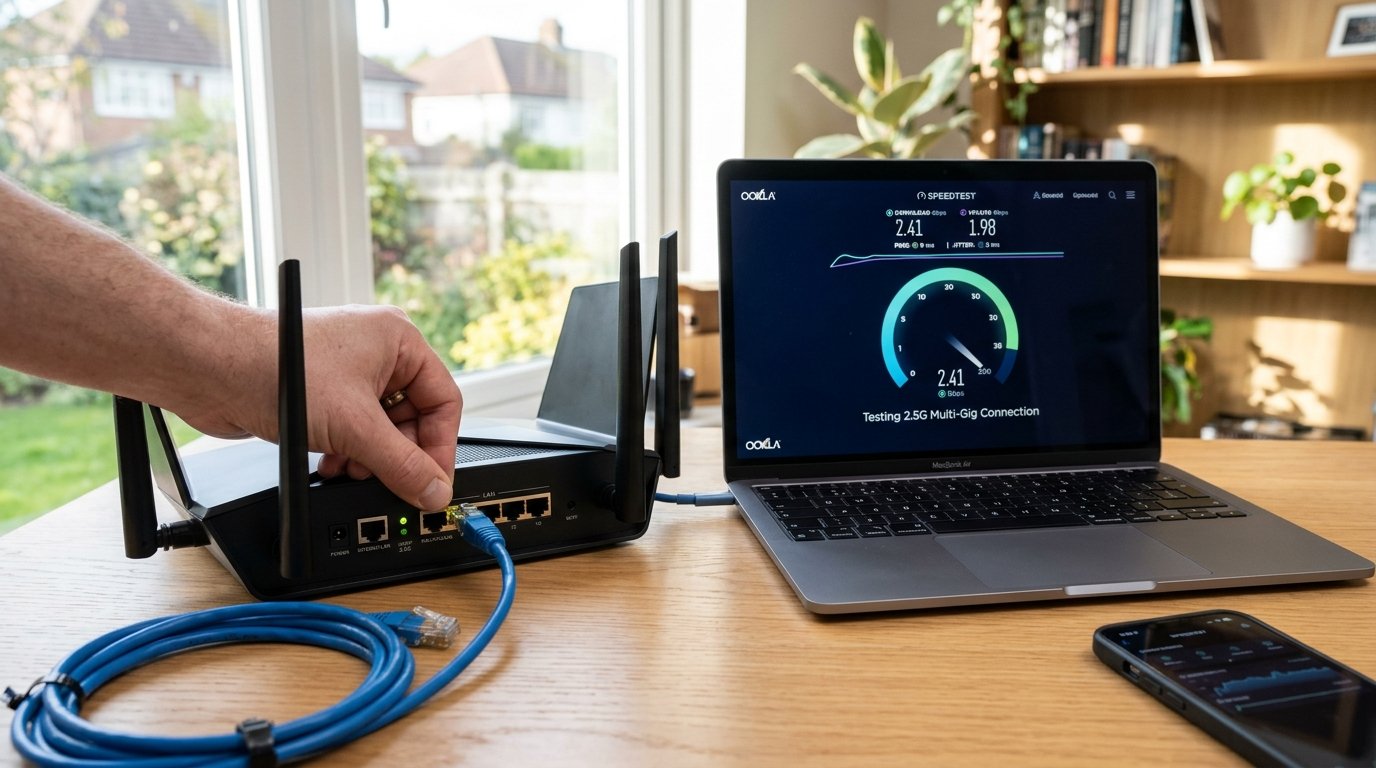
Every day, millions of internet subscribers launch a speed test from their smartphone, tablet, or laptop, only to be disappointed by results that fall 30% to 60% below the gigabit tier advertised on their monthly broadband bill. Before calling your Internet Service Provider (ISP) to file an angry technical complaint, it is essential to understand a fundamental reality of telecommunications: a speed test does not merely measure your physical fiber or cable line—it measures the composite performance of every hardware and software link between your browser and the test server.
In this comprehensive network testing guide, we examine the physics of wired Ethernet versus wireless radio frequencies, uncover the hidden causes of intermittent packet loss, and outline a rigorous diagnostic protocol to reveal your true broadband throughput.
1. The Wireless Penalty: Why Wi-Fi Distorts Network Speed Tests
Wi-Fi is an incredible convenience, but from an engineering perspective, it is inherently an unstable, shared, half-duplex medium subject to the laws of radio frequency (RF) physics. When you run a speed test over Wi-Fi, three factors immediately degrade measured throughput:
- Physical Attenuation & Obstacles: High-frequency 5 GHz and 6 GHz signals deliver massive bandwidth, but their short wavelengths struggle to penetrate drywall, brick, plaster, and metallic kitchen appliances. A single interior wall can drop your physical link rate from 1,200 Mbps down to 350 Mbps.
- Airtime Contention (CSMA/CA): Unlike Ethernet switches which provide dedicated full-duplex lanes for every connected device, Wi-Fi operates on Carrier Sense Multiple Access with Collision Avoidance. If your smart TV is streaming 4K video or a smart home camera is uploading motion clips on the same channel, your test device must wait in line for broadcast airtime slots.
- Co-Channel Interference from Neighbors: In apartment complexes and dense urban suburbs, dozens of neighboring Wi-Fi access points compete for overlapping spectrum channels, causing microsecond packet collisions that force retransmissions and inflate measured ping jitter.
2. Empirical Benchmark: Cat6 Ethernet vs. Wi-Fi 6 / 6E
| Network Connection Type | Typical Download Throughput (1 Gbps Plan) | Idle Ping Latency | RFC Packet Jitter | Packet Loss Probability |
|---|---|---|---|---|
| Direct Cat6 Ethernet (Wired) | 940 Mbps – 950 Mbps (Hardware line rate) | 2 ms – 4 ms | < 0.5 ms | 0.00% |
| Wi-Fi 6E (6 GHz, 3 Meters Line-of-Sight) | 820 Mbps – 910 Mbps | 6 ms – 10 ms | 1.2 ms – 2.5 ms | < 0.1% |
| Wi-Fi 6 (5 GHz, Next Room through Drywall) | 420 Mbps – 580 Mbps | 12 ms – 22 ms | 3.5 ms – 7.0 ms | 0.2% – 0.8% |
| Wi-Fi 5 (5 GHz, Across Multi-Floor Home) | 180 Mbps – 260 Mbps | 24 ms – 45 ms | 8.0 ms – 18.0 ms | 1.5% – 4.0% |
| Legacy 2.4 GHz Band | 45 Mbps – 85 Mbps | 35 ms – 70 ms | 15.0 ms – 35.0 ms | 2.0% – 6.0% |
3. Step-by-Step Diagnostic Protocol for 100% Accurate Testing
To accurately measure whether your ISP is delivering your subscribed speeds without local bottleneck interference, execute this standardized engineering checklist:
- Eliminate the Wireless Variable: Connect a Category 6 (Cat6) or Category 6a (Cat6a) shielded twisted-pair Ethernet cable directly from your computer into one of the LAN ports on your main router or modem. Beware of older Cat5 cables, which are physically capped at 100 Mbps.
- Verify Gigabit NIC Handshake: On Windows (Network & Internet Settings) or macOS (System Settings > Network > Ethernet > Hardware), ensure the link speed reports 1000/1000 Mbps or 2500/2500 Mbps. If it displays 100/100 Mbps, your cable is damaged or pinned incorrectly.
- Pause Background Traffic: Ensure cloud backup daemons (OneDrive, Google Drive, iCloud, Dropbox, BitTorrent), game launchers (Steam, Battle.net), and streaming apps are paused on all devices connected to your LAN.
- Disable VPN and Antivirus Interception: Virtual Private Networks (VPNs) encrypt data packets and route them through intermediary proxy servers, artificially reducing measured bandwidth by 20% to 50%. Disable VPN tunnels and third-party antivirus browser extensions during diagnostic benchmarking.
- Execute the Test: Open the WRLDU Unthrottled Speed Test and initiate the multi-stream diagnostic. Compare both download and upload values against your contracted plan.
4. Diagnosing Packet Loss & Jitter Spikes
Speed is meaningless if your connection suffers from packet loss. Even 1% packet loss will cause audio cutouts during Zoom calls, rubberbanding in competitive online games, and severe TCP throughput collapse (as TCP interprets dropped packets as network congestion and automatically halves transmission window sizes).
To pinpoint exactly where packet loss originates along your network path, run a command-line MTR (My Traceroute) diagnostic in your terminal:
# On macOS / Linux (install via: brew install mtr)
mtr -rw -c 50 1.1.1.1

# On Windows PowerShell
pathping 1.1.1.1
Examine the resulting hop table. If Hop 1 (your local router, e.g., 192.168.1.1) shows 0% loss, your local home equipment and cabling are functioning perfectly. If packet loss begins at Hop 2 or Hop 3 (your ISP's local gateway or CMTS headend), the fault resides squarely on your ISP's physical neighborhood line.
Editorial note: Network throughput values may vary depending on local hardware architecture, switch backplanes, and regional ISP peering agreements. Test your connection across multiple time slots using the WRLDU Network Diagnostic Suite to establish an accurate baseline.