Low-Ping Gaming Speed Test: How to Diagnose High Ping, Jitter & Server Tick Rate Drops in Competitive Games
Why do competitive gamers experience hit-registration lag and rubberbanding despite a 1 Gbps fiber connection? Learn how tick rates (64 vs 128 vs sub-tick), loaded ping, and bufferbloat dictate online gaming performance.
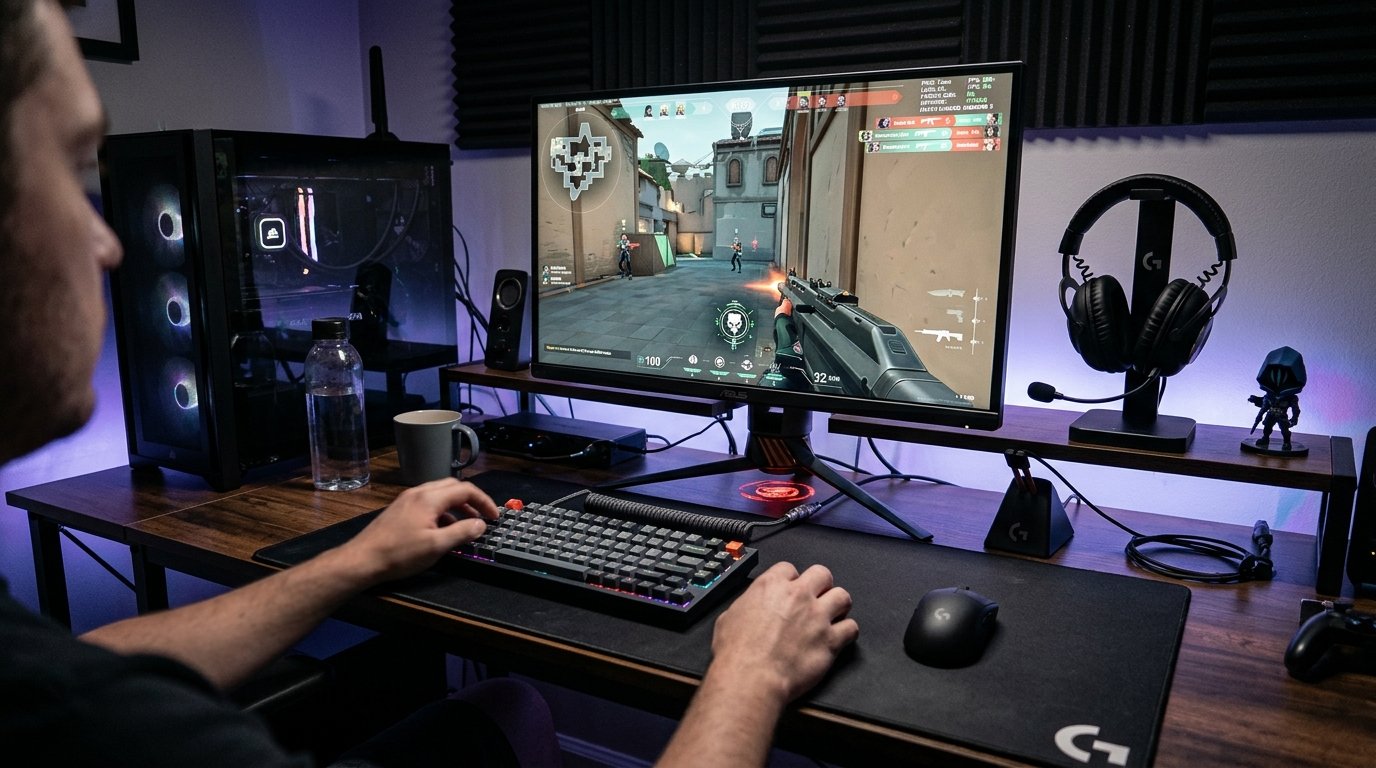
In the world of competitive esports and online multiplayer gaming—whether you are holding a choke point in Valorant, engaging in a sniper duel in Counter-Strike 2, or landing in Apex Legends—raw bandwidth is practically irrelevant. An active multiplayer gaming session rarely consumes more than 0.5 Mbps to 1.5 Mbps of data transfer. You could possess a 10 Gbps fiber optic broadband connection, and yet still experience ghost shots, delayed hit registration, and sudden desync deaths.
Why does high download bandwidth fail to prevent online gaming lag? Because competitive gaming is governed entirely by packet arrival timing, microsecond jitter variance, and loaded network latency. In this technical deep dive, we examine the network architecture of multiplayer game servers, unpack the mechanics of tick rates, and demonstrate how to optimize your network for sub-15ms competitive play.
1. The Four Pillars of Gaming Network Performance
When diagnosing why games feel sluggish or inconsistent, telecommunications engineers evaluate four distinct metrics:
- Base Ping (Idle Latency): The round-trip time (RTT) in milliseconds for a UDP packet to travel from your gaming PC/console to the central game server and back. Sub-20 ms is ideal; 20–50 ms is acceptable; anything above 70 ms places you at a severe competitive disadvantage.
- RFC Packet Jitter (Variance): Jitter measures the statistical deviation between consecutive ping packets. A stable 30 ms ping is infinitely superior to a connection that fluctuates between 15 ms and 65 ms. High jitter destroys game interpolation engines, resulting in stuttering player animations.
- Packet Loss (UDP Drops): Multiplayer games communicate over UDP (User Datagram Protocol), which prioritizes speed over reliability by refusing to retransmit lost packets. A 1% packet loss rate means one out of every hundred player movement commands or bullet registrations disappears into thin air.
- Working Ping (Loaded Latency / Bufferbloat): What happens to your ping when other devices on your home network upload or download data. If your ping jumps from 15 ms to 120 ms the moment a family member starts a video stream, your router suffers from bufferbloat.
2. Server Tick Rates & Sub-Tick Engine Mechanics
Every multiplayer game server runs an internal simulation loop called a tick. On each tick, the server computes the physics of the virtual world, processes incoming player inputs, resolves hitboxes, and broadcasts updated coordinate state packets back to all connected clients:
| Game Title | Server Tick Rate | Tick Duration (ms) | Network Impact |
|---|---|---|---|
| Valorant (Riot Games) | 128 Hz (Dedicated) | 7.81 ms per tick | Ultra-crisp hit registration; requires sub-2 ms local jitter for optimal precision. |
| Counter-Strike 2 (Valve) | Sub-Tick Architecture | Continuous time-stamped inputs | Timestamps inputs between server frames; highly sensitive to UDP packet drops. |
| Apex Legends / Warzone | 20 Hz – 60 Hz | 16.6 ms – 50.0 ms | Slower server refresh; high client interpolation makes latency variance very noticeable. |
| Rocket League | 120 Hz Physics Tick | 8.33 ms per tick | Deterministic physics simulation; packet loss immediately causes rubberbanding car physics. |
3. Pre-Match Diagnostic Testing Protocol
Before entering high-stakes ranked matches, run this 30-second network readiness check:
- Test Loaded Latency: Open the WRLDU Unthrottled Speed Test and look closely at the Loaded Ping gauge. If your loaded ping is more than 15 ms higher than your idle ping, your router is buffering packets and creating in-game lag spikes.
- Inspect RFC Jitter: Verify that reported jitter is below 2.0 ms. If jitter exceeds 5.0 ms on a wired connection, your ISP's routing nodes or neighborhood coaxial lines are dropping frames.
- Verify Zero Packet Loss: Ensure packet loss reports exactly 0.00%. Even micro-packet drops will cause bullet registration desync in fast-paced tactical shooters.
4. Actionable Steps to Eliminate Gaming Ping Spikes
To achieve tournament-grade responsiveness, implement these hardware and operating system optimizations:
- Ditch Wi-Fi for Direct Cat6 Ethernet: Wi-Fi introduces radio frequency arbitration delays (10 ms to 30 ms spikes) whenever radio interference occurs. A direct wired Ethernet cable eliminates 99% of jitter.
- Enable SQM (Smart Queue Management) on Your Router: Configure CAKE or FQ-CoDel algorithms on your router. SQM actively prevents heavy file downloads or streaming from congesting the router's queue, keeping gaming packets in an expedited, zero-delay fast lane.
- Adjust Network Adapter Properties (Windows): In Device Manager under your Ethernet NIC properties > Advanced:
- Disable Energy Efficient Ethernet (EEE) and Green Ethernet to prevent the network card from sleeping between bursts.
- Set Interrupt Moderation to Disabled or Low to minimize packet buffering in system RAM.
Editorial note: In-game latency is fundamentally bounded by the geographic distance between your residence and the physical game server datacenter. Use the WRLDU Network Diagnostic Suite to measure your baseline network latency before competitive sessions.